ttrek 1.6.0: see your build before it starts
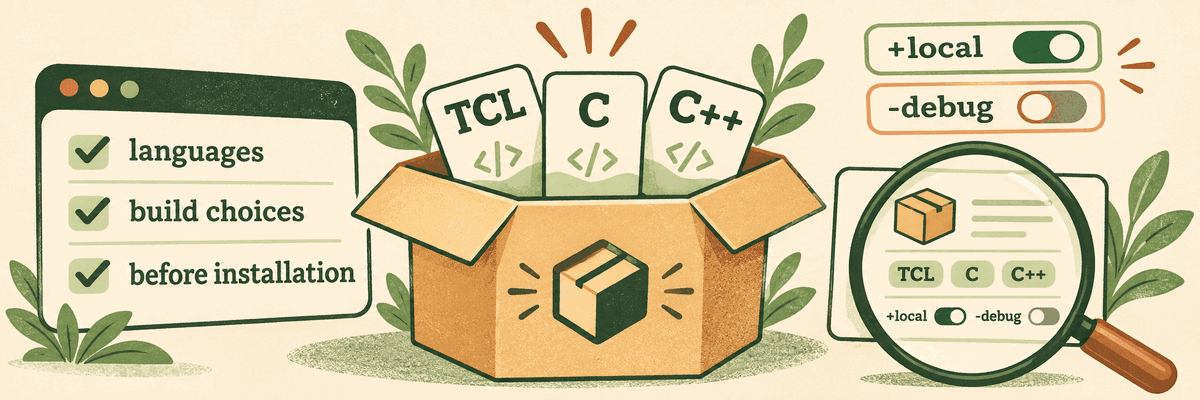
ttrek 1.6.0 makes build choices easier to manage and the install plan easier to read. Programming-language labels show what each package is written in, USE flags belong to each installation, and earlier checks catch missing build requirements before package builds begin.
See the languages in your install plan
The preview now displays programming languages beside package names and versions. For example, in a fresh project:
ttrek pretend tjson jinja2-tcl
With the current registry, ttrek 1.6.0 shows:
The following packages will be installed:
cjson@1.7.19 [C]
zlib@1.3.2 [C]
tcl@9.1.0 [C, TCL]
jinja2-tcl@0.1.1 [C++, TCL]
tjson@1.0.27 [C, TCL]
You can see the mix of C, C++, and Tcl before anything is built. Labels come from the selected version's recipe metadata; packages without that metadata still appear, just without a label. Versions will change as the registry grows.
The same labels appear in install and update plans, search results, and
ttrek ls. Saved language metadata also makes installed-package listings
useful when you are offline.
pretend uses the same solver and planner as installation, without writing
project files, running hooks, or building packages. To preview an update, use:
ttrek pretend -strategy latest
USE flags belong to the installation
USE flags select optional dependencies and build settings that a project or
recipe supports. A flag beginning with + enables a choice; - explicitly
disables it. An absent flag is disabled too.
The new use-flags command manages these choices. For a project that supports
local, enable it, inspect the settings, and preview the resulting build:
ttrek use-flags add +local
ttrek use-flags ls
ttrek pretend
ttrek install
This is useful for choices such as a local SQLite database versus a PostgreSQL dependency for deployment. The project declares which dependencies and build steps each flag selects.
Changing a flag saves the setting; the next install applies it. When an
installed package needs rebuilding because its effective flags changed, the
plan marks it with (USE flags changed). Packages rebuilt because they
depend on another changed package are marked (reverse dependency).
You can review those reasons before proceeding.
Use add to change individual settings, set to replace the full list, and
del to remove a setting. For example:
ttrek use-flags add -local
ttrek use-flags del +local
Both leave local disabled. The first records an explicit choice; the second
removes the setting and returns to the default. Run ttrek help use-flags for
the complete command reference.
Settings now live in ttrek-venv/ttrek-manifest.json, keeping each
installation's choices separate from the shared project definition.
Disabling a dependency removes it from the selected dependency graph, but does not uninstall files already present. Start with a fresh installation when preparing production artifacts after a local build.
Catch missing requirements earlier
Before downloading sources or building any package in the plan, ttrek now checks the recipes that need building for required external files and applicable CMake or Autoconf requirements. A missing header, library, or tool can be reported before an earlier package spends time compiling. Recipes can provide installation hints alongside their requirements.
Generated install scripts receive these checks too. pretend remains a
preview of the plan; the requirement checks run when you install.
Get ttrek 1.6.0
Update ttrek, then check your installed version:
ttrek self-update
ttrek version
New here? Get started with ttrek, browse the package registry, or try building a website.